

Web client
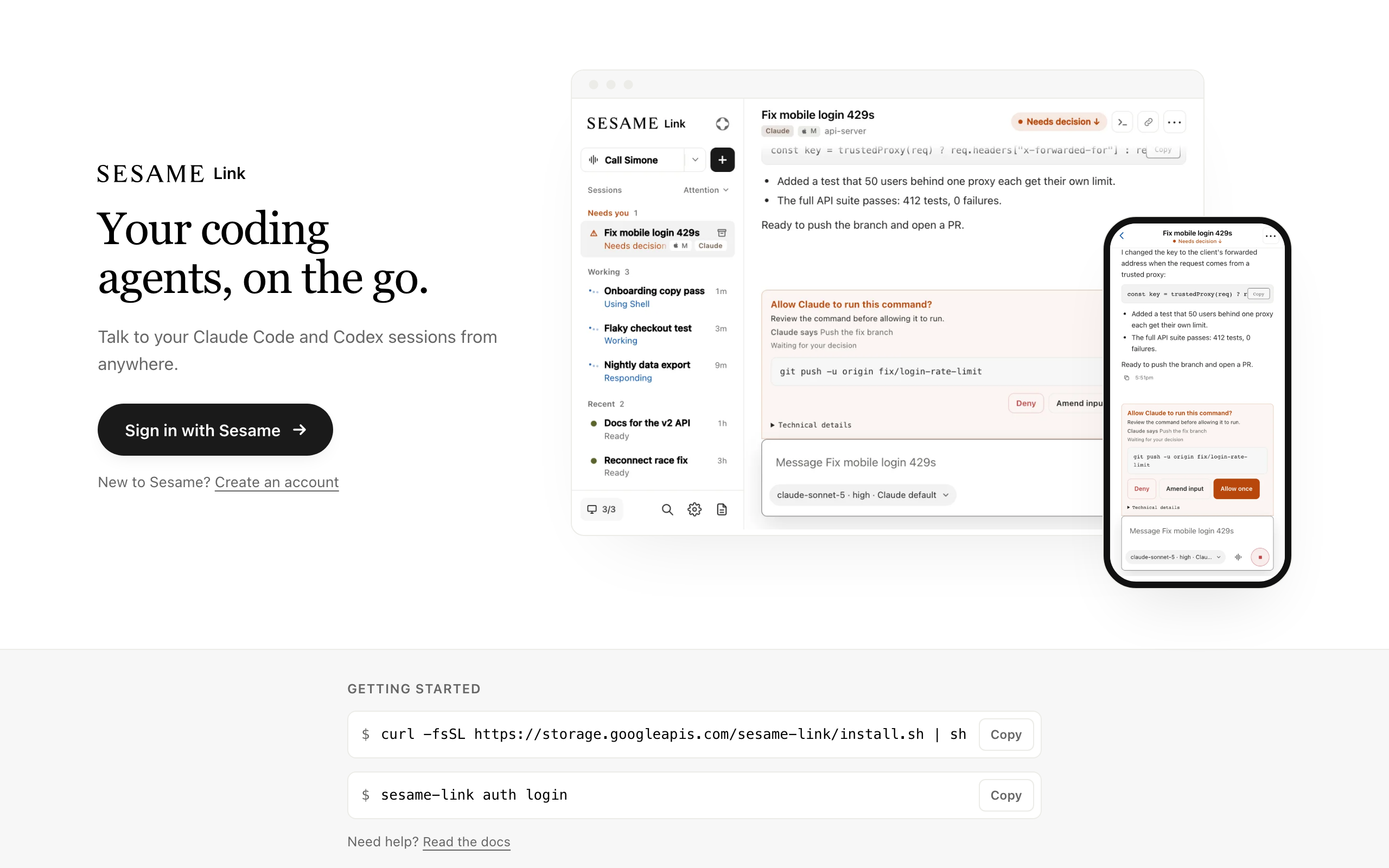
The web client shows every session on every computer signed in with your Sesame account. Use it to start sessions, follow them as they work, and answer their questions from a browser or your phone.
Sign in
Section titled “Sign in”-
Open
link.sesame.com . -
Choose Sign in with Sesame, and use the same Sesame account as your computer.
-
If you haven’t connected a computer yet, follow the Quickstart.
Start a session
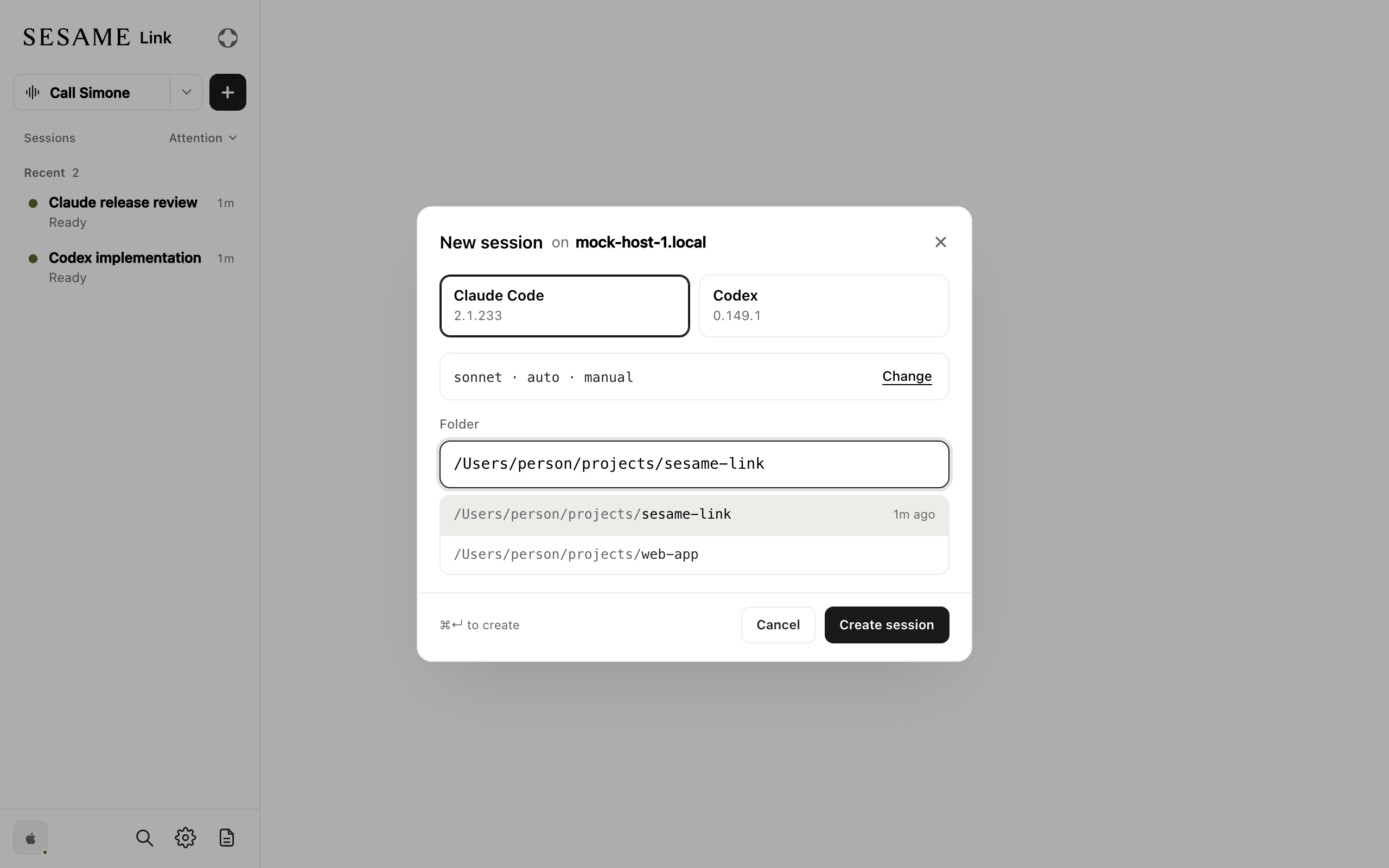
Section titled “Start a session”Select New session, or + above the session list, then choose:
- Computer: named in the form’s title. If you have more than one, pick it there.
- Runtime: Claude Code, Codex (preview), or Pi (best-effort preview). Pi appears when it is installed on the selected computer; see Pi setup.
- Settings: the model, the effort, and how the session asks for permission. Select Change to pick different values.
- Folder: where the session runs. Recently used folders are listed under the field.
Select Create session, then type your first message.
If no computer is online, run sesame-link start on one.
Work in a session
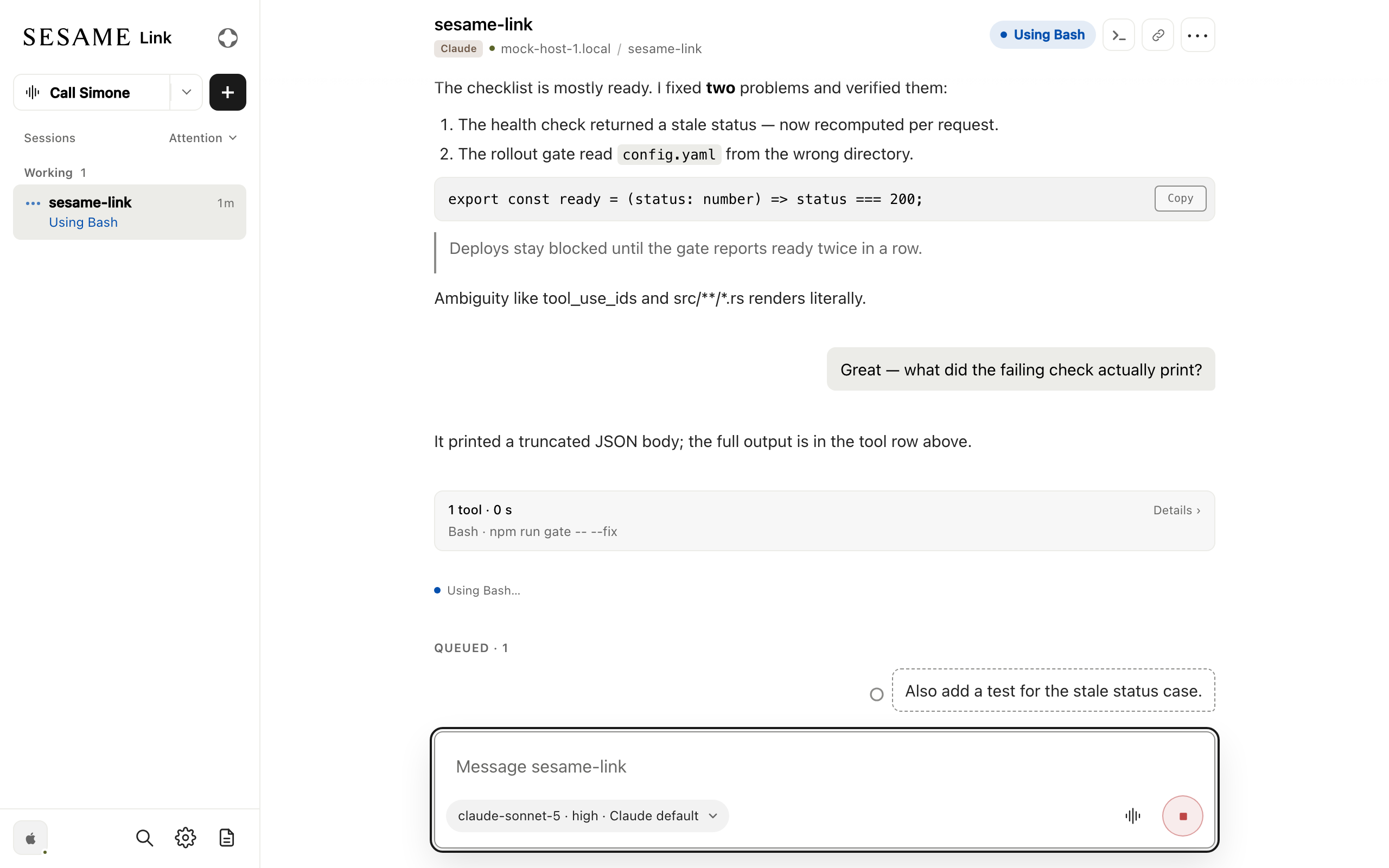
Section titled “Work in a session”- Send messages at any time: a message you send while the agent is working is delivered as soon as the session can take it, which with current Claude Code and Codex is right away. Until then it waits in a queue, where you can cancel it. See Sharing a session.
- Stop the agent: stop the running turn from the composer.
- Answer prompts: permission requests and questions appear in the conversation with the same choices the terminal offers. See Permissions and approvals.
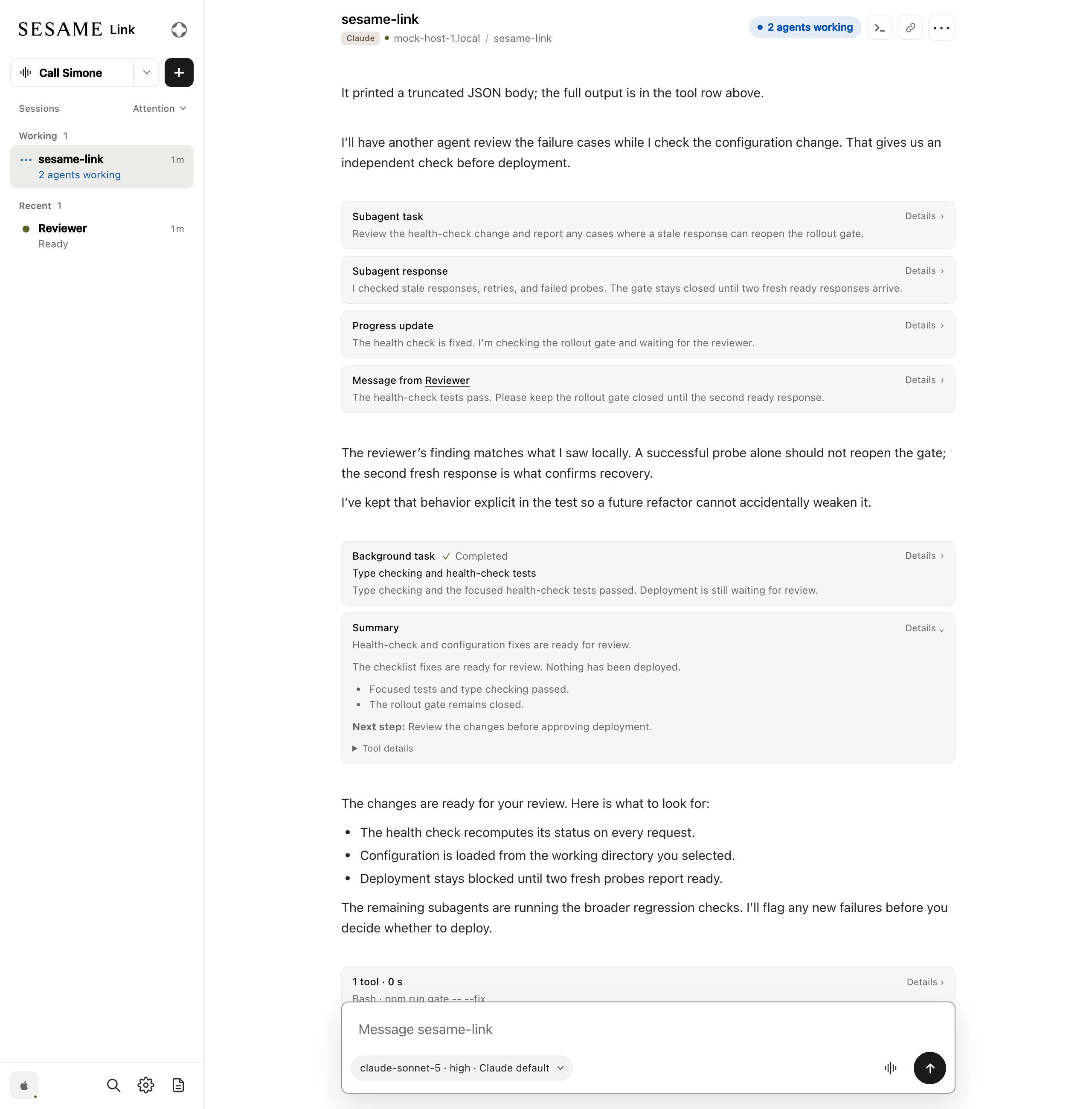
- See what the agent did: tool calls are grouped into runs. Select Details on a run to see each call and the model’s thinking.
Reports from subagents and background tasks appear as panels in the conversation. Select Details to read the full report.
Use the session menu
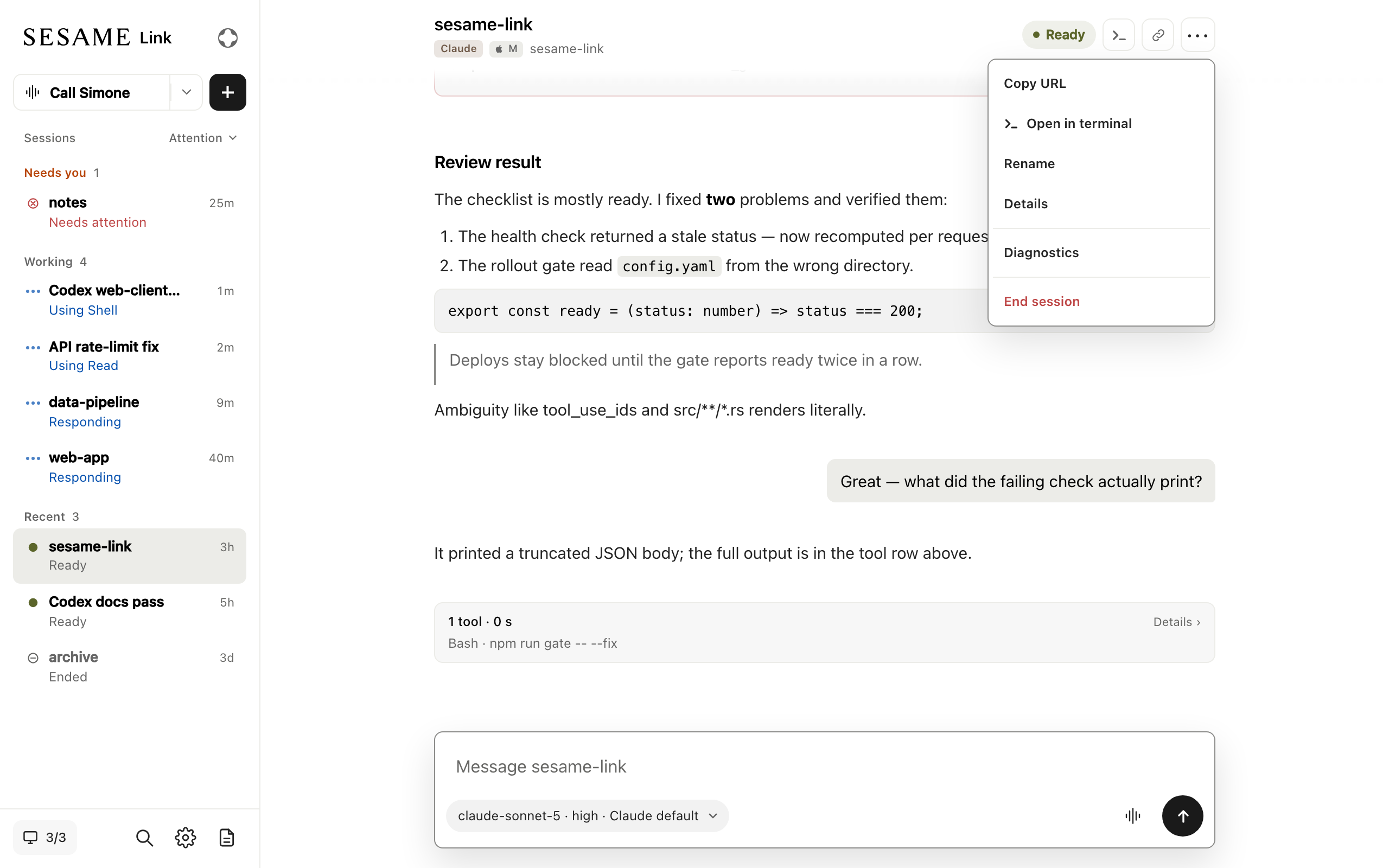
Section titled “Use the session menu”Open a session’s ••• menu to:
- Copy URL: copy a link to the session. It opens only in a browser signed in to your account.
- Open in terminal: get the
sesame-link sessions attachcommand to run on the session’s computer. - End session: end the session. On a phone, you can also swipe the session left in the list. See what ending keeps.
If a Codex session won’t end, choose Remove from Link… from its menu. This removes it from Sesame Link without waiting for Codex, so Codex may still be working on your computer. Its Codex terminal closes once no window shows it.
Update the web client
Section titled “Update the web client”The web client updates itself when a tab is in the background, or after a minute with no typing, clicking, or scrolling. It waits while you are in a voice call, have a dialog open, have text in the field you are typing in, have scrolled back through a conversation, or have text selected. Your drafts and queued messages are kept, and your coding session continues running.
To update sooner, choose Reload when Update available appears. End an active voice call first.
The notice appears only after the update has downloaded, so you can reload even if your connection then drops. If a draft cannot be saved, the page stays open and explains why it could not update.
When your connection drops
Section titled “When your connection drops”In a conversation you have opened, messages you send while your connection or the computer is down are saved on this device and sent once both are back, as long as the page stays open. You can edit or cancel a message until it starts sending, and a message is never sent twice.
If the conversation changed while a message waited, for example because you sent another instruction from somewhere else, the message asks you to Review changes before it goes. If Sesame Link can no longer tell whether a message arrived, it shows Delivery unknown: look at the conversation, then choose Edit to send it again or Dismiss. Messages after it wait, then ask you to review them before they go. Immediate actions, such as steering a running turn, need a live connection.
Drafts and conversations you have opened stay available after a reload, though they may be missing the latest activity until the page reconnects.
Follow a voice call
Section titled “Follow a voice call”While you are on a call with your Sesame agent, a dot in the session list marks the session the agent is focused on. Turn on Sync focus with agent in Settings to open that session automatically. For a call you started in the web client, the same setting works the other way too: open a different session and the agent switches to it, even mid-sentence. Going back to the session list leaves the agent where it was.
Check your computers
Section titled “Check your computers”The computer icon at the bottom of the session list shows how many of your computers are online. Select it to see each computer’s status, and Update when a newer release is out.
Sessions on an offline computer are marked Offline. Sessions on a computer that has been offline for more than a day are hidden; select Show offline computers at the end of the session list to see them.
Sign out
Section titled “Sign out”Open the menu (the three lines at the bottom of the session list) and choose Sign out. This signs out only this browser, and clears its saved conversations, drafts, and waiting messages; your computers stay signed in.